Your tracking shows no opens?
Most of the time it comes down to one of the four causes below. Checking all of them takes about a minute.
In most cases the fix takes less than a minute and tracking resumes on your next email.
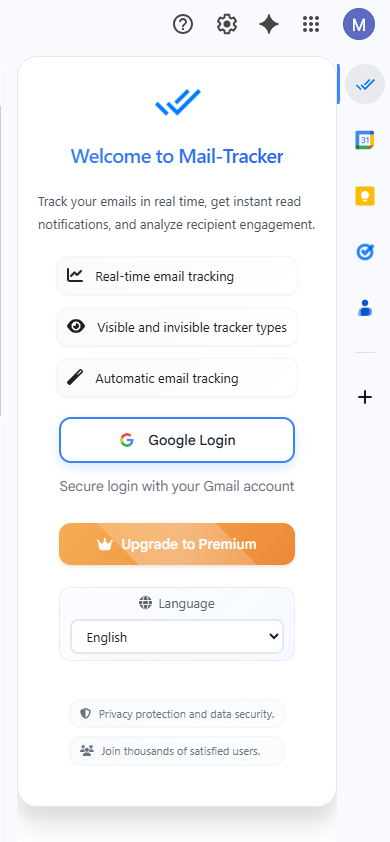
Are you signed in to the extension?
Installing the extension is not enough. Tracking only starts once you are signed in from the Mail Tracker sidebar, with the Google account you send your emails from. This is the first thing to check.
How to check: Open Gmail, click the Mail Tracker icon in the right sidebar, and confirm your address is showing. If you juggle several Gmail accounts, make sure you are signed in on the one you send from.
Is your subscription active?
When your subscription or trial ends, or if a payment fails, tracking access is suspended. Your emails still go out, but no tracker is added to them. That is why nothing shows up, with no visible error in Gmail.
How to check: Open your account page and check your subscription status. If it has expired or a payment is pending, reactivate it: tracking resumes immediately on the emails you send next.
Did you add a tracker to that email?
An email is only tracked if a tracker was inserted before you sent it. If you add it by hand every time, forgetting once is enough for an email to leave untracked.
How to check: In the Gmail compose window, click the Mail Tracker icon before sending. To stop thinking about it, turn on automatic tracking from the sidebar: every email you send is then tracked by default.
Does your recipient display images?
Tracking relies on an invisible pixel loaded from our servers the moment the email is opened. If your recipient turned off automatic image loading, or their mail client blocks images, that pixel is never loaded and no open can be detected. The email may well have been read.
How to check: There is nothing to fix on your side: this setting belongs to the recipient. To test your setup, send to an address where you know images load automatically.
When an open goes missing, or shows up out of nowhere
Pixel tracking has structural limits, and they are the same for every tool on the market. Knowing them keeps you from misreading your stats.
Apple Mail Privacy Protection
Since iOS 15, Apple Mail preloads the images of every incoming email, including the ones the recipient will never open. An open can therefore be reported although nobody read your message.
Outlook and corporate mail
Outlook and many corporate mail systems block images by default: the email gets read, but nothing comes back. Conversely, some security filters open emails ahead of the recipient and trigger an open that did not come from them.
An email sent to yourself
Gmail serves your own message from its cache without always reloading the pixel. A test sent to your own address is therefore unreliable: use a different address, ideally on a different device.
Your own opens
When you reopen a tracked email from a machine where the extension is installed and signed in, that open is discarded: it does not inflate your numbers. But if you read that same email from another device, another browser, or while signed out of the extension, it counts as a normal open.
These limits are not specific to Mail Tracker: no email tracking tool can work around them, because they come from the mail clients themselves.
Uninstalled Mail Tracker?
Reinstalling takes one click from the Chrome Web Store, and there is nothing to set up again.
Reinstall the extensionYour account and your tracking history are untouched: everything comes back as soon as you sign in again.
None of this matches your case?
Write to us with your browser and the time you sent the email in question, and we will trace your tracker.